Player Guide
How to score crokinole games with Croke.
Play pick-up games with friends
Overview
Croke lets you score crokinole games from your phone and track your stats over time. No app download required—just open the website and start playing.
Sign in to save your games to your player profile, or play as a guest if you just want to keep score.
1. Starting a Game
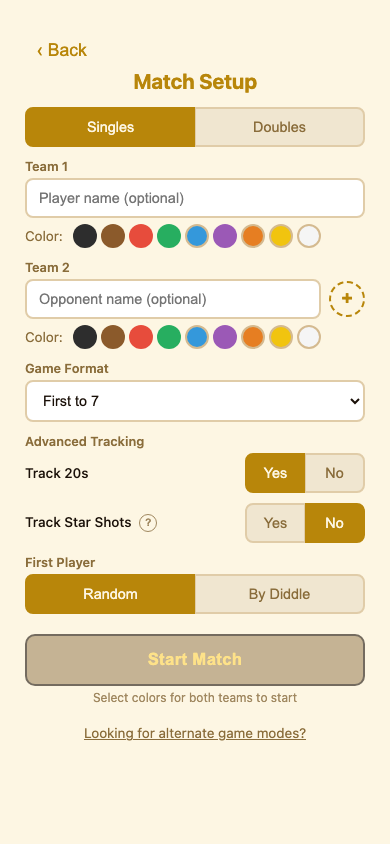
Go to croke.app/player and tap "Casual Match" to start a pick-up game. Configure your match settings:
- Mode — Singles (1v1) or Doubles (2v2)
- Format — First to 5, 7, 9, or 11 points, or a fixed number of games (4, 6, or 8)
- Track 20s — Toggle on to track 20s scored during the match
- Colors — Tap a color button to select your disc color, then tap another for your opponent
- First Player — Random (app picks), or Diddle for the Middle
These settings are remembered for next time if you're signed in.
2. Adding Players
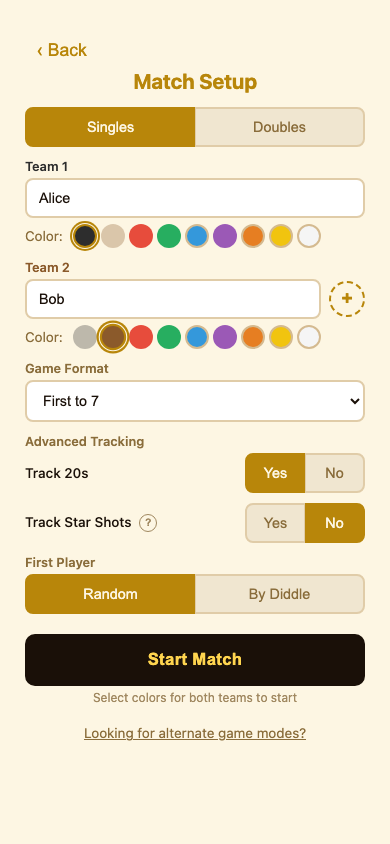
Each player position has a name field. Before starting the match, fill in names for all players:
- Guest names — Type any name to play without an account
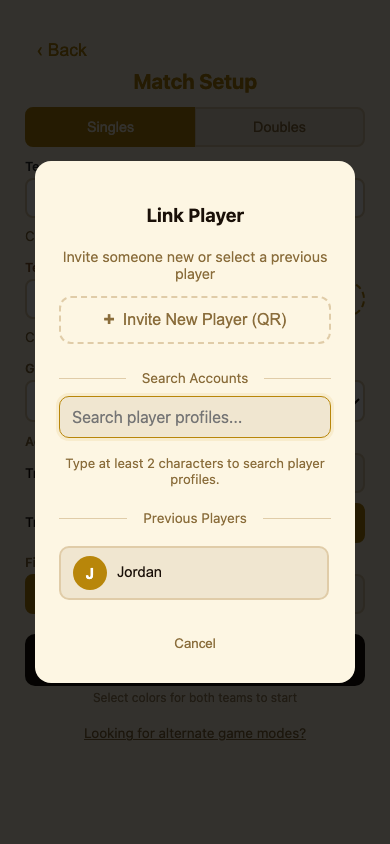
- Linked accounts — Tap the + button to link a player's Croke account to that position
You can mix and match—some players can be guests while others link their accounts. Players with linked accounts will have the game saved to their match history when it finishes.
See Section 4: Linking Your Profile for details on sign-in options and inviting players.
3. Scoring Games
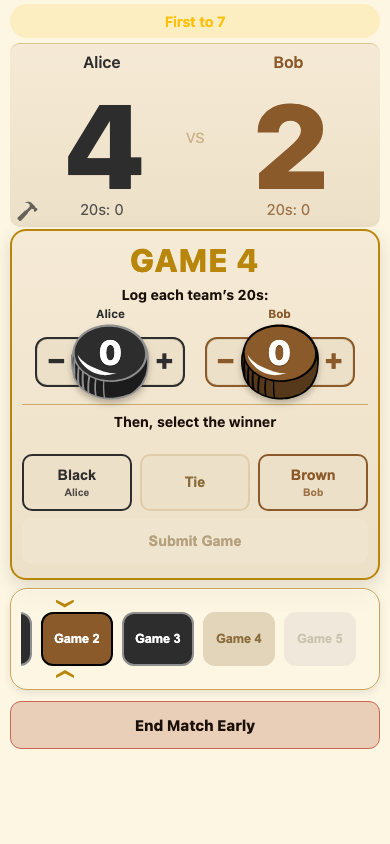
After each game, record the result:
- Win buttons — Tap the winning team's color
- Tie — Tap the center button if no one won
- 20s — Use the +/- buttons to track 20s (if enabled). Tap the team name under the buttons to switch which team's 20s you're entering.
- Hammer — If you chose "Random" for First Player during match setup, a 🔨 icon shows which team shoots last and alternates automatically after each game.
After scoring each game, a new game card appears automatically. The match ends when a team reaches the target score.
Editing Previous Games
Made a mistake? Tap any completed game card to expand it and change the result. You can edit any game at any time during the match.
Landscape Mode
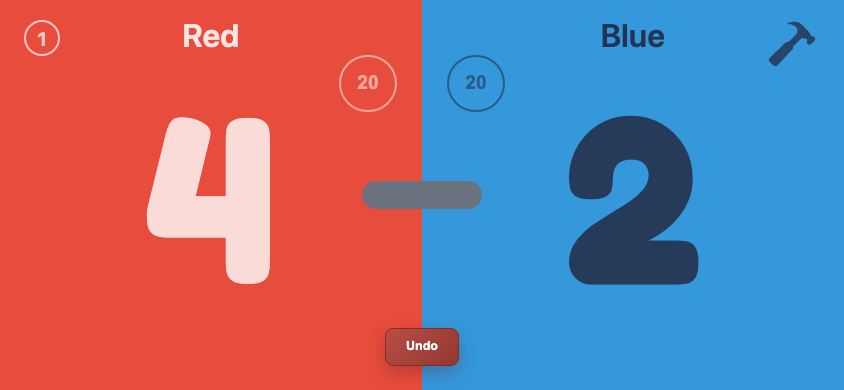
Rotate your phone to landscape for a large spectator-friendly display. Tap each team's side to record wins, or the center dash for a tie. This is a simplified mode — 20s tracking is not available in landscape.
4. Linking Your Profile
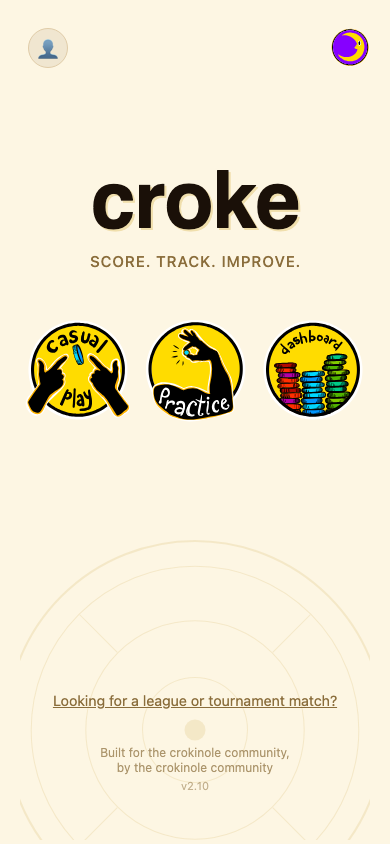
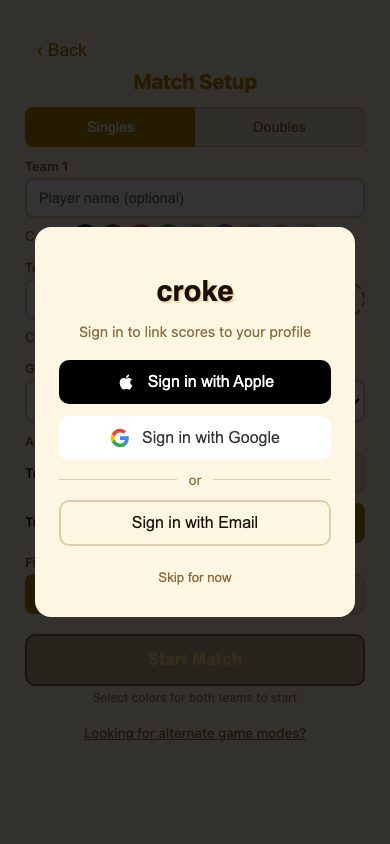
Sign in to save games to your player profile. From the home screen, tap the profile icon in the top left corner to open the sign-in screen. Sign in with Google (one tap) or Email (passwordless link). Once signed in, your name and avatar appear and games will be saved to your match history.
Inviting Other Players
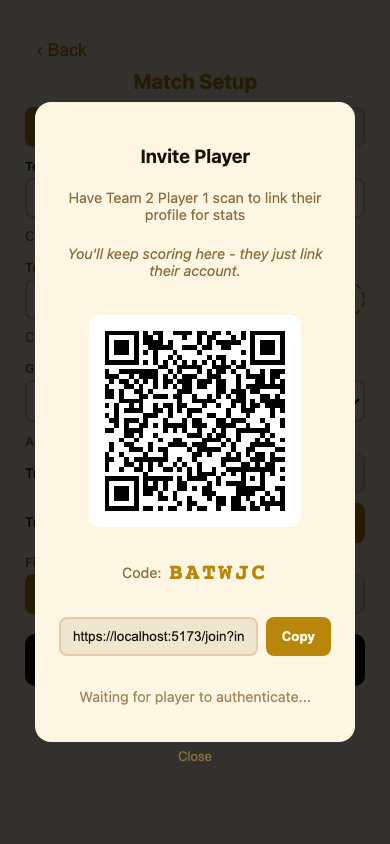
Want other players to link their accounts too? From the match setup screen, tap the + button next to their position. They can scan the QR code on your screen, or visit the link shown and enter the 6-digit code. Once they sign in on their device, their account links to that player position automatically.
Previous Players
Players you've invited before appear in your previous players list at the bottom of the invite screen. Tap their name to link them instantly — they don't need to sign in again on their device.
5. Your Player Dashboard
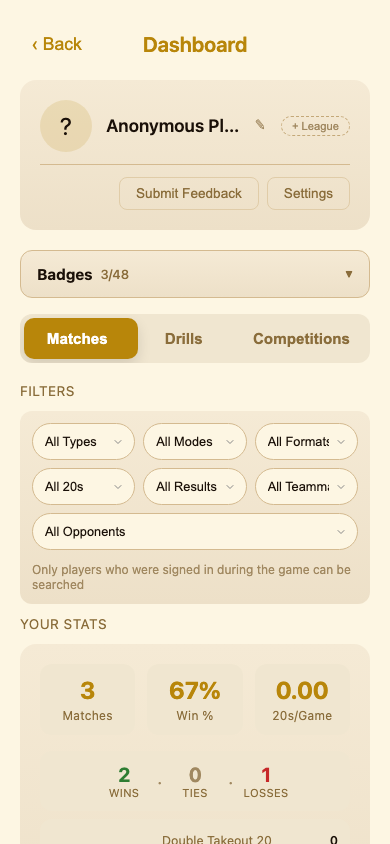
Visit croke.app/me to view your player dashboard:
- Profile — Your display name and account info (tap to edit your name)
- Stats — Win percentage, total matches, games played, and 20s per game
- Match History — Every match you've played while signed in
Settings & Notifications
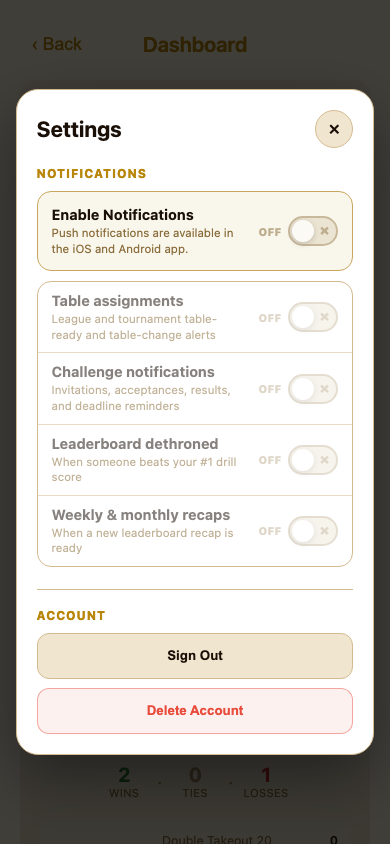
Tap Settings in your profile card to manage your account. Sign Out and Delete Account are available in the Account section.
In the iOS and Android apps, you can enable native notifications and choose which updates you want:
- Table assignments — Your table and matchup when a league or tournament match is ready
- Drill challenges — Direct invitations, acceptances, results, and one 24-hour deadline reminder
- Leaderboards — When another player takes your #1 drill score
- Recaps — Weekly and monthly leaderboard recaps
If notifications are blocked, use Open Device Settings to re-enable them. The web version shows the same preferences but does not request browser notifications.
Stats Breakdown
Use the tabs above your stats to view by game mode:
- Singles — Stats from 1v1 matches only
- Doubles — Stats from 2v2 matches only
Match Details
Tap any match card to expand it and see game-by-game results, including who won each game and 20s scored by each side.
Filtering Matches
Use the filter controls above your match history to narrow results:
- Mode — Singles or Doubles
- Format — Match format (First to 5, Fixed 4, etc.)
- 20s — Matches with or without 20s tracking
- Result — Wins, losses, or ties
- Teammate / Opponent — Matches with a specific player (only players who were signed in can be searched)
Troubleshooting
Google Sign-In Popup Blocked
Some browsers block popups. Try closing other Croke tabs, waiting a few seconds, or using "Sign in with Email" instead.
Didn't Get the Email Link
Check your spam folder. The email comes from Firebase. If it doesn't arrive within a minute, try sending again.
Game Not in My History
Games only save to your profile if you were signed in before the match finished. If you signed in after, that match won't appear.
Overview
The Player Portal is a web-based scoring interface that players access from their phones during organized league sessions. No app download required—players simply scan a QR code or enter a table code to join.
This guide helps organizers understand the player experience so you can assist with questions and troubleshoot issues during league nights.
1. Joining a Table
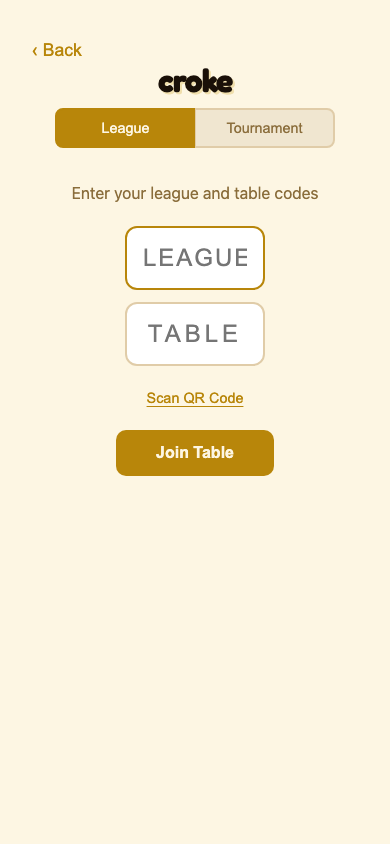
Players join a table in one of two ways:
- Scan QR Code — Links directly to that table's scoring interface
- Enter Code — Go to croke.app/player and enter the league code + 4-digit table code
2. Team Selection
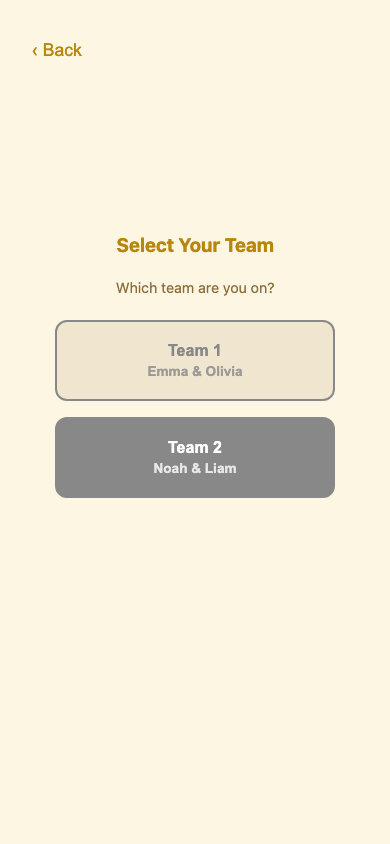
After joining, players see the team selection screen. One player from each team claims their team:
- Teams show assigned player names from the organizer
- Once claimed, shows "In use" to others
- Only one device per team can score
3. Color Selection
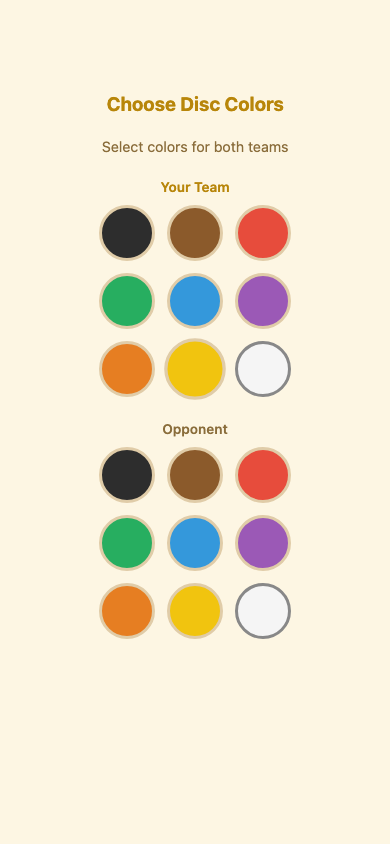
If your league uses "Player Choice" color mode, the first team to join picks disc colors:
- Select your team's color first
- Then select opponent's color
- Second team sees these when they join
4. Scoring Games
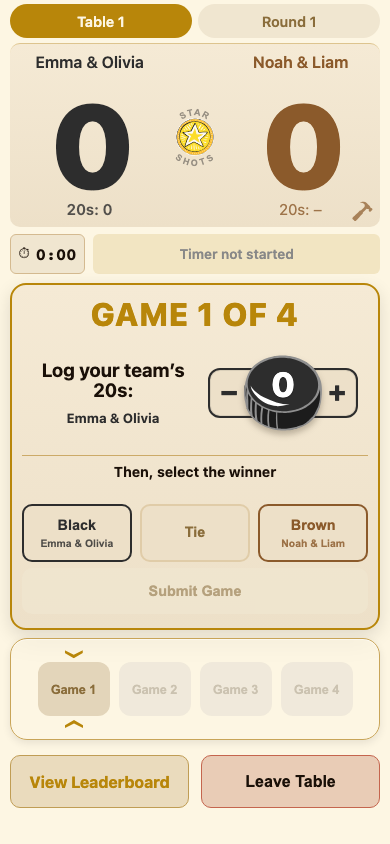
The interface shows game cards (typically 4 for standard rounds):
- Recording wins — Tap the color of whichever team won each game
- Ties — Tap the center "Tie" button if a game ends in a tie
- 20s counter — Track only your own team's 20s scored
- Scores sync in real-time between both teams
5. Score Conflicts
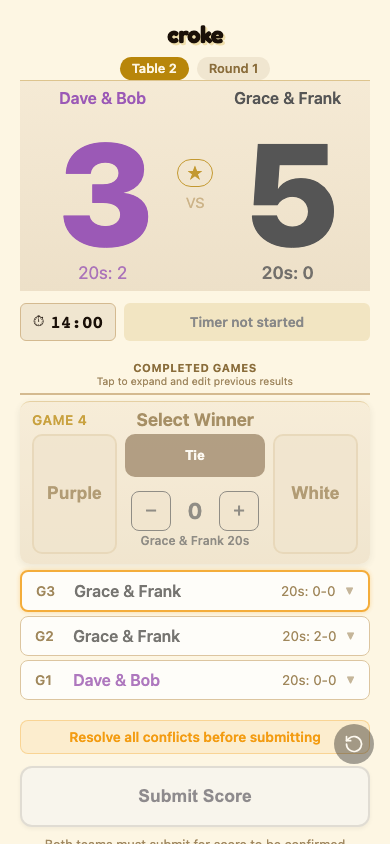
If teams enter different results for the same game:
- Conflicting game shows orange border
- Can't submit until resolved
- Teams verify and one updates their entry
6. Submitting Scores
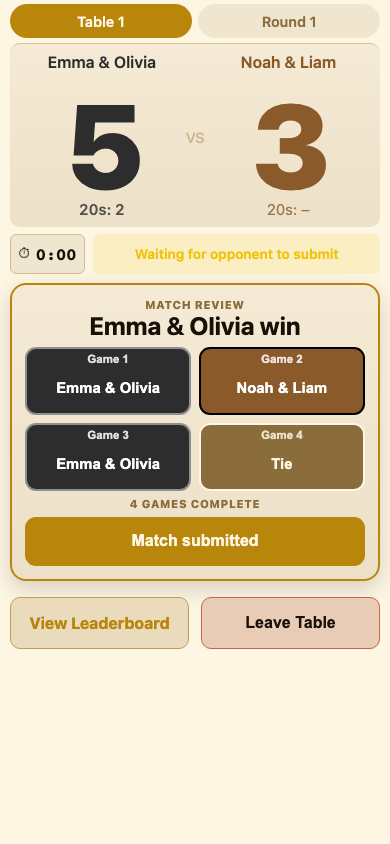
Once both teams enter matching scores:
- Submit button becomes enabled
- Either team can submit final scores
- Both see confirmation afterward
- Match auto-locks on organizer portal
7. After the Round
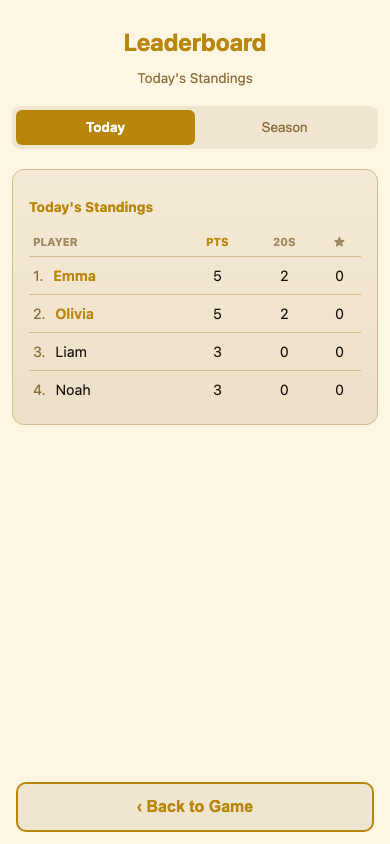
After submitting scores, players have two options:
- Leave Table — Exit to scan a new table when the next round starts
- View Leaderboard — See session standings and season rankings
When the organizer starts the next round, players scan their new table's QR code or enter the new table code.
Common Issues
"Team already in use"
Another device claimed that team. If the original device is lost, refresh and try again—team becomes available after timeout.
QR Code Not Working
Ensure the camera app can open web links. Manual entry at croke.app/player always works.
Scores Not Syncing
Check internet connection. Scores sync via Firebase in real-time.
Getting Started
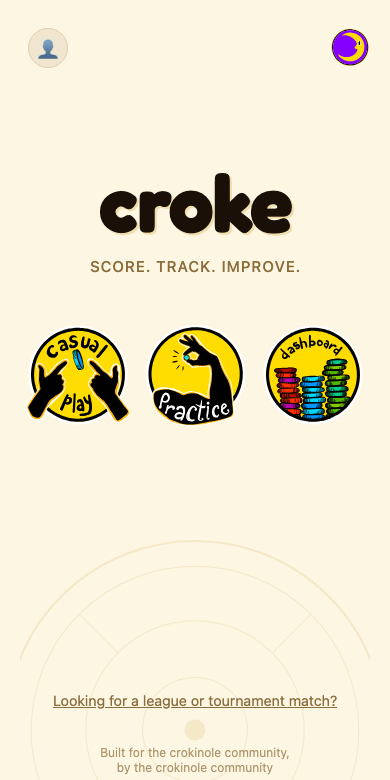
Go to croke.app/player and tap "Drills" to open the drills menu.
Starting a Drill
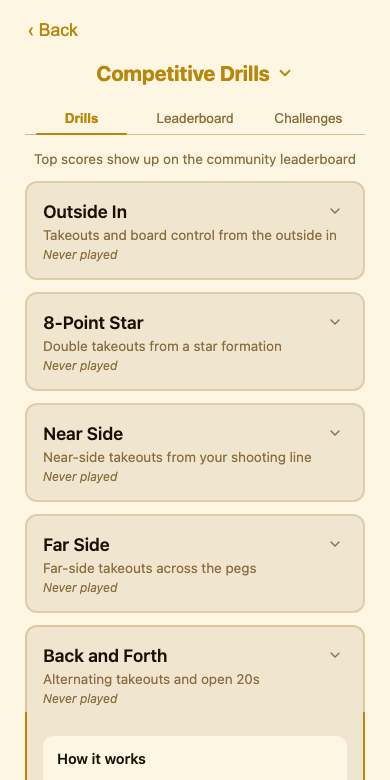
Tap a drill card to expand it and see options. Tap "Start Drill" to begin.
- Open 20s — Practice shooting at the 20 hole. After each set of shots, tap how many you made.
- Outside In — Practice takeouts. Use the +/- buttons to enter your net score, then tap "Record Score".
Tracking Progress
Sign in to sync your drill results to your player profile. View your practice stats and history at croke.app/me.