League Organizer Guide
Everything you need to run league nights with Croke.
Overview
The Croke organizer app helps you run crokinole league nights efficiently. Access it at croke.app/league. This guide covers league setup through running sessions and viewing results.
1. Creating a League
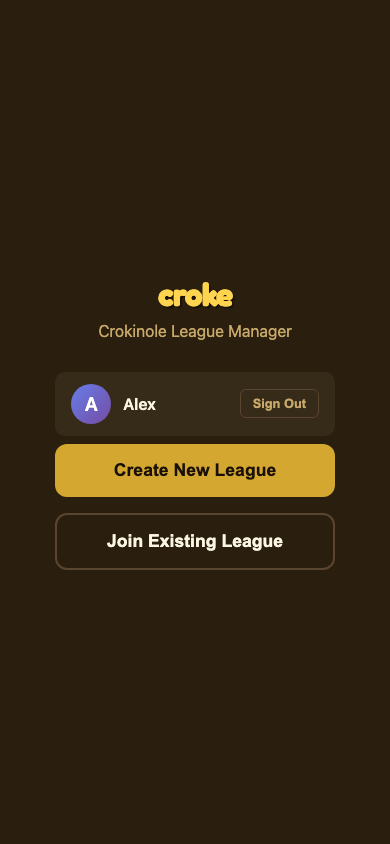
When you first open the app, you'll create or join a league:
- Click Create New League
- Enter a 3-4 letter code to identify your league
- Use this code to access your league from other devices and to generate QR codes
2. Setting Up a Season
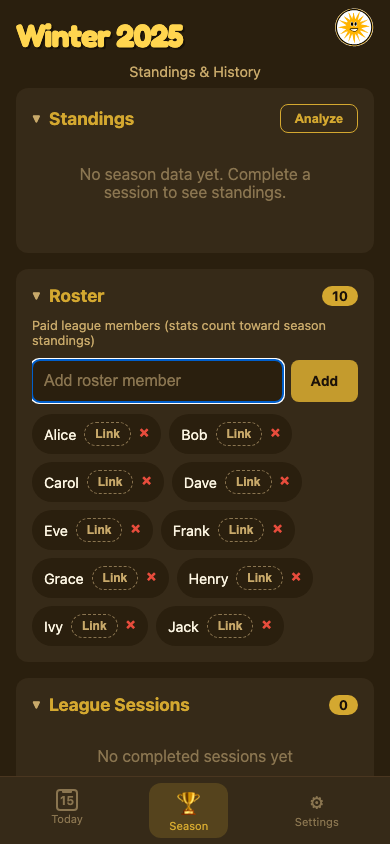
Leagues are organized into seasons. To create one:
- Go to Settings tab and click New Season
- Enter a name (e.g., "Winter 2025")
- Add roster members in the Season tab
Add roster members for players who have paid into the league and are officially part of the season.
3. Linking Player Accounts
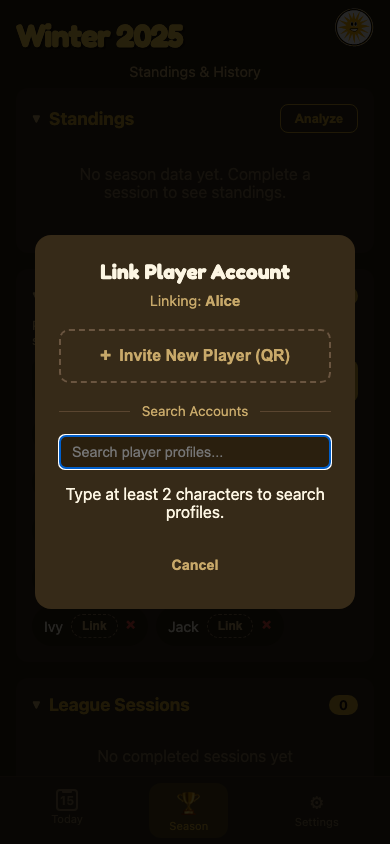
Roster members can link their accounts to track game history in their personal dashboard at croke.app/me.
To link a roster member:
- Go to the Season tab and find the player in the roster
- Click the Link button next to their name
- Click Invite New Player to generate a QR code
- Have the player scan the QR code with their phone
- The player signs in with Google or email to complete linking
Once linked, the player's name appears in bold with a cyan outline in the roster, and all their league matches will automatically appear in their personal dashboard.
Linking also restores eligible matches from completed league sessions and sets the player's affiliation to your registered league. Existing history is preserved; appearances recorded as a guest are excluded.
If a step cannot finish, the link screen shows what needs attention. Select Retry to finish the same link, including replacing an older affiliation with this league. You can also select Check linked players below the roster to check existing accounts and retry an individual player. If an older linked account belongs to a different league, choose the clearly labeled affiliation action to replace it. The check itself does not change any data.
4. Starting a Session
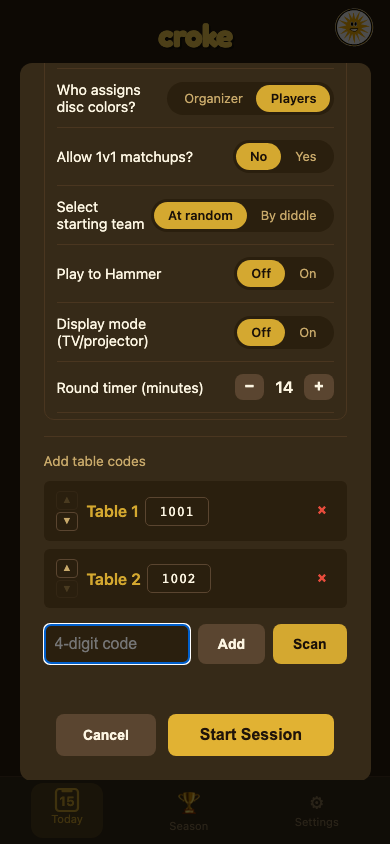
Each league night is a "session". To start one:
- Go to Today tab and click New Session
- Configure settings:
- Format - Swiss pairs players by skill level; St. Jacobs randomizes pairings
- Color Mode - Organizer assigns disc colors, or players choose at the table
- Score Tracking - Enable to track game-by-game results and 20s via the Player Portal
- 1v1 Matchups - Allow singles matches when you don't have enough players for another doubles table
- Starting Team - "At random" picks randomly; "By diddle" lets players shoot for it
- Round, Warm-up & Break Timers - Set the timing used by the organizer and Player Portal
- Display Mode - Optionally show the same session on a TV; turning it off does not disable session timers
- Play to Hammer - After the round timer expires, players finish the current game through the hammer shot and use the top review banner when ready
- Add table codes and click Start Session
To reuse the same physical tables each league night, open Settings → Session Defaults → Tables. Save each table code and its two disc colors there. The table list will be prepopulated when you open New Session, where you can still add, edit, remove, reorder, or recolor tables for that session without changing the season defaults.
5. Running Rounds
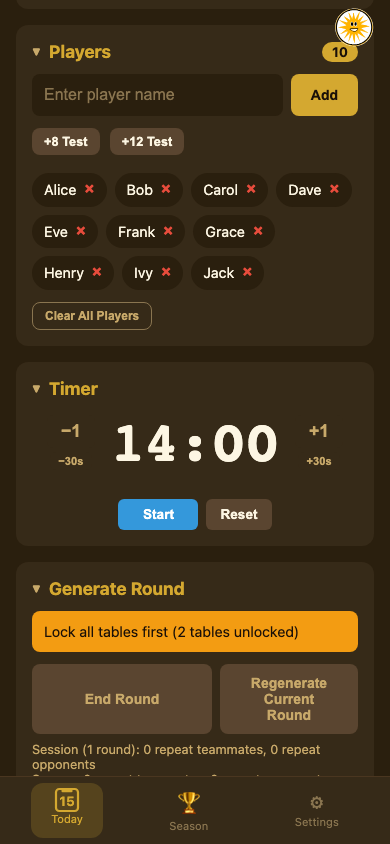
Once players are checked in:
- Click Generate Round to create pairings
- Review matches - you can edit pairings before starting if needed
- Click Start Round to begin play
The warm-up begins when the organizer starts a round, followed by the round timer. The break begins when the round timer expires if auto-advance is enabled, or when the organizer ends or resets the round. Player phones show only the warm-up and round timers; during the break, the expired round timer stays at 0:00.
As players score on their phones, you'll see match states:
- In Progress - Match is active, waiting for scores
- Locked - Scores confirmed, match complete
Click the lock icon on a current match to edit its scores. Completed matches remain editable under Previous Rounds; review the before-and-after totals and confirm the correction before it is applied.
If a round was generated or started accidentally, use Reset Round. After confirmation, this closes its table assignments, removes that unended round and its scores, and returns the session to the break. Completed historical rounds are not affected.
6. Monitoring Games
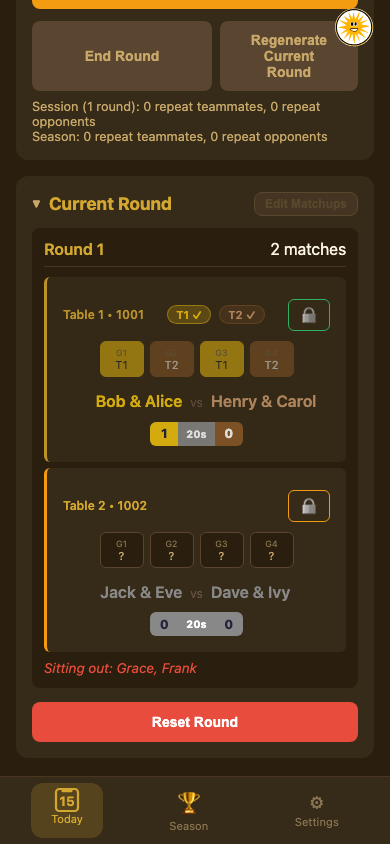
As players submit scores from the Player Portal, results appear automatically on match cards. You don't need to do anything until:
- The round is complete (all matches locked)
- A conflict appears (teams entered different results)
When a conflict occurs, ask teams to verify their entries. Most conflicts resolve themselves when players correct their mistakes in the Player Portal.
If needed, click the match card to manually unlock, enter correct scores, and lock the match.
7. Ending a Session
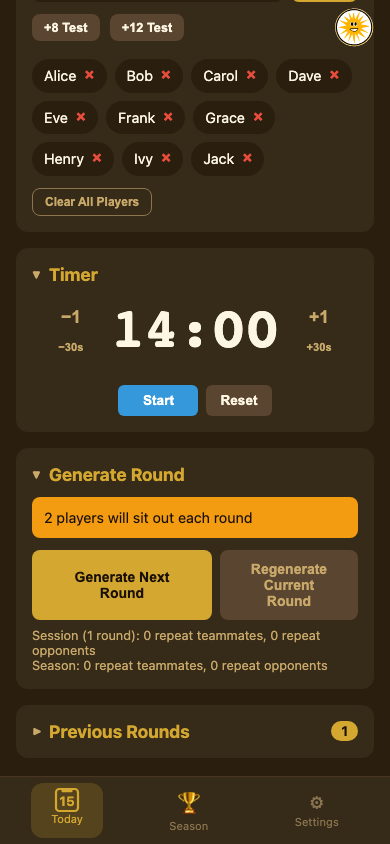
When all rounds are complete:
- Click End and Save Session
- Confirm to save results to season history
Results are automatically added to standings. A session cannot end while any generated round remains unended. Start and complete it, or use Reset Round to remove it.
To remove an erroneous completed round, use Delete Round under Previous Rounds. The organizer must type the displayed confirmation phrase, and deletion is unavailable while another round is active.
8. Season Analytics
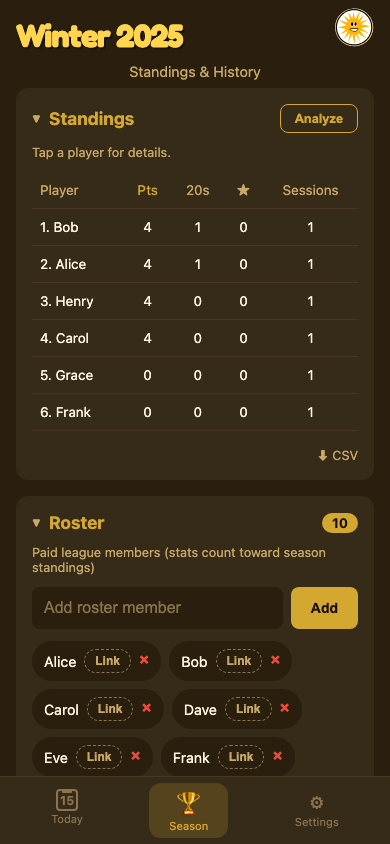
The Season tab shows cumulative stats across all sessions:
- Standings - Points, games played, win %, 20s scored
- Partner Chemistry - Heatmap of how pairings perform together
- Session History - Results from past league nights
Tips for Smooth Sessions
- Print QR codes beforehand using the QR Generator
- Brief new players on the Player Portal (one person per team scores)
- Check connectivity - ensure WiFi or cell coverage at venue
- Keep your league code handy for accessing from other devices